
To manage formlets, go to Manage > Formlets.
Viewing
In the Formlets panel, you can view all the formlets in GoForms.
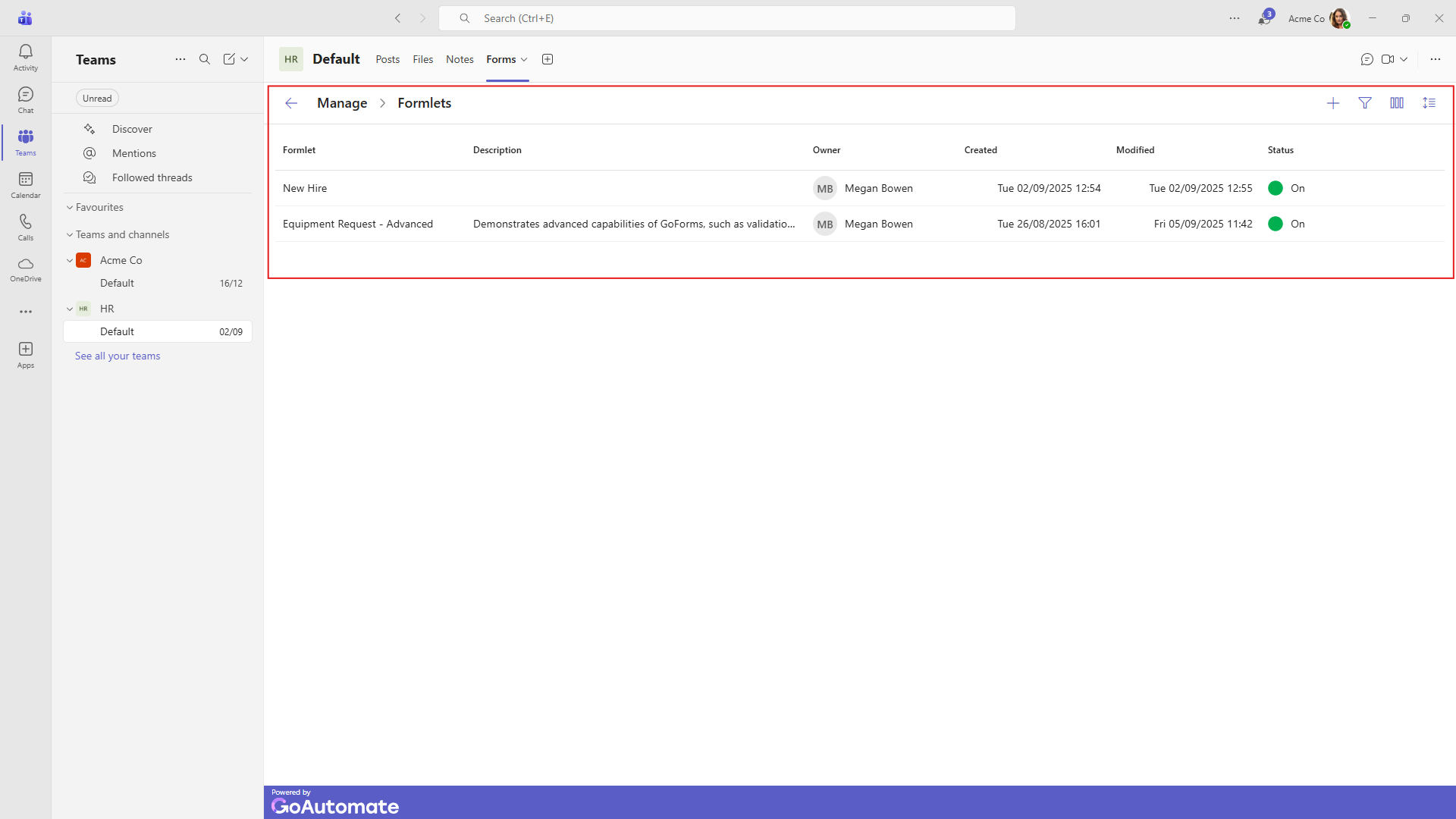
Here’s what each column shows:
| Column | Description |
|---|---|
| Formlets | The name of the formlet. |
| Description | A brief description of the formlet. |
| Owner | The person who created the formlet. |
| Status | Whether the formlet is On or Off. |
| Created | The date and time the formlet was created. |
| Modified | The date and time of the last update. |
You can customize the panel using the toolbar to select which columns are shown, adjust row spacing, sort each column, and rearrange columns by dragging them left or right.
Creating
In the Formlets panel, click the plus (+) icon to open the Create Formlet panel.
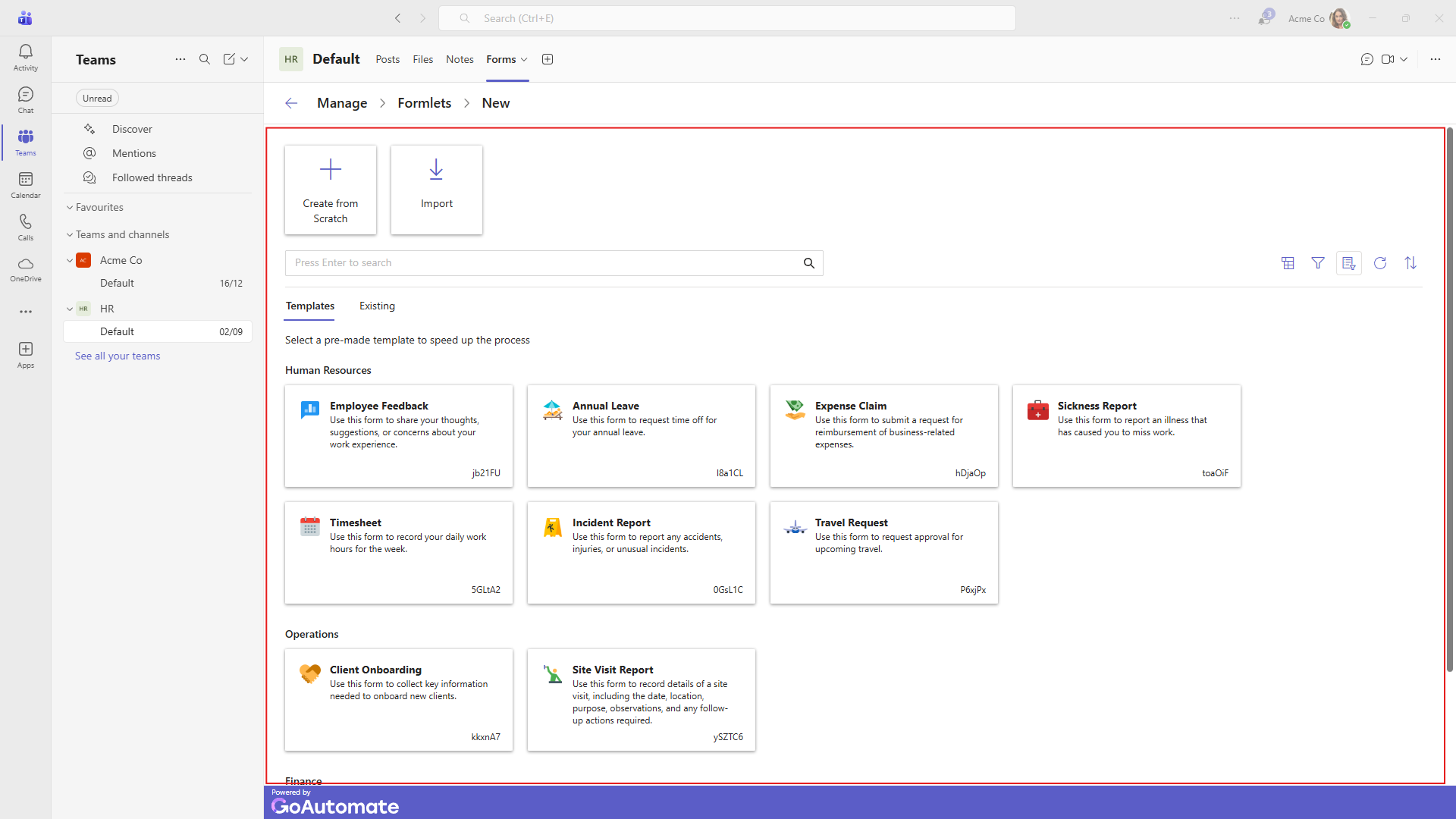
Choose whether to:
- Use a template,
- Start from one of your existing formlets, or
- Create a new formlet from scratch.
After choosing, give your formlet a name and brief description, then click Create. This will open the Flow Builder.
Viewing details
To check, update, or patch a formlet, you need to view its details.
In the Formlets panel, find the formlet's Name. Either click directly on the Name or hover over it and click the "more" button  next to it. Select View from the menu that appears.
This will open the Formlet Details panel for that formlet.
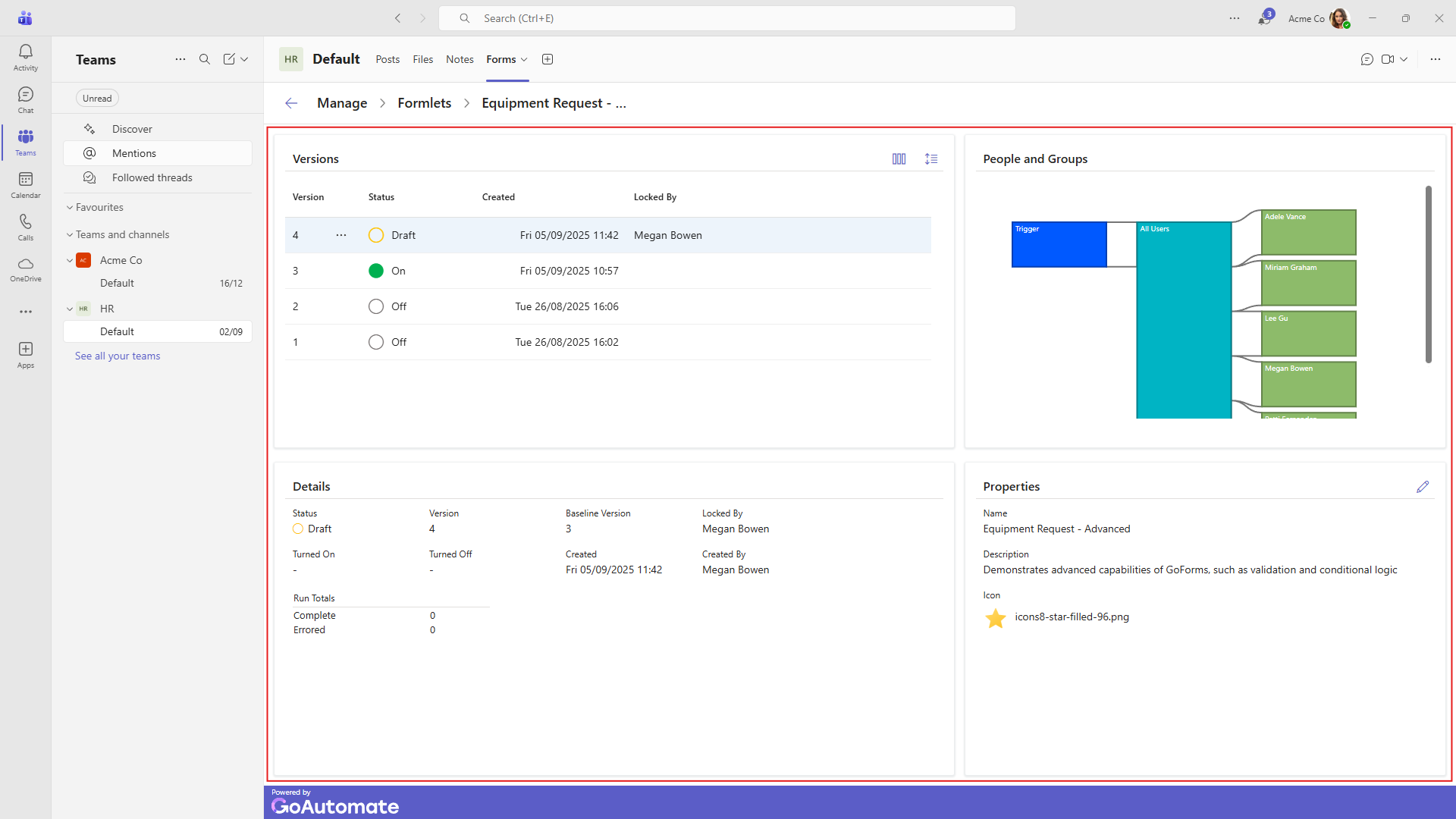
The Formlet Details panel is divided into three sections:
- Versions: Displays the different versions of the formlets and their status.
- People and Groups: Shows the manual activities and how they are assigned to people and groups.
- Details: Provides more in-depth information about the version currently selected in the Versions section.
In the Versions section, you can customize the display by choosing which columns to show and adjusting the row spacing using the toolbar.
The available columns in the Versions section are:
| Column | Description |
|---|---|
| Version | The version number of the formlet. |
| Status | Shows if the formlet is On, Off, in Draft (for editing), or Ready (final draft completed). |
| Locked By | Shows if the version is locked and who locked it. |
| Created | The date and time the version was created. |
| Patch | Indicates if a patch is in progress and its number. |
| Patch Status | The current status of the patch (Draft or Active). |
You can sort each column, change column widths, and move columns left or right by dragging them.
Available actions
Click the "more" button next to a specific version to see the available actions.
Here are the actions you can take for a formlet version:
| Option | Description | Notes |
|---|---|---|
| Turn On | Turn on the formlet. | Available when the status is Ready or Off. Turning On a version will automatically turn Off any other version that is currently On. |
| Turn Off | Turn off the formlet. | Available when the status is On. |
| View | Open the formlet in the Flow Builder. | |
| Create Draft | Create a new draft version ready for editing. | |
| Edit Draft | Edit the draft version in the Flow Builder. | |
| Discard Draft | Delete the draft and all changes. | |
| Acquire Lock | Take control of the formlet if someone else has locked it for editing. | |
| Create Patch | Create a patch ready for editing. | |
| Edit Patch | Edit the patch in the Flow Builder. | |
| Discard Patch | Delete the patch and all changes. | |
| Activate Patch | Apply the patch to the formlet. |
Updating
You can update a formlet from the Formlet Details panel.
Updating a formlet means creating a new version and making changes to it. These changes will only apply when the new version is turned on. Existing formlet runs will not use the updated version.
To update a formlet, create a draft version using the Create Draft action. Then edit the draft by selecting Edit Draft to open the Flow Builder.
Learn how to update your formlet by using the Flow Builder.
When updating a formlet, choose a baseline version as the starting point for the new version. Usually, you'll select the latest version, but if you want to undo some recent changes, you can choose an earlier version instead.
Starting and stopping
To start or stop a formlet, go to the Formlet Details panel.
You can Turn On or Turn Off a specific version of a formlet. When you turn on a new version, any other version that is currently on will automatically turn off.
Hiding
To hide , open the Formlet panel.
Select the formlet you want to hide, then choose Hide from the … menu next to it. Use the panel filter to show or hide formlets.
 ON THIS PAGE