
To view formlet run history, go to the History option in the menu.
Here, you can view the history of formlet runs.
- As a Member, you can see the runs you started.
- As an Admin, you can see all runs.
Runs from different formlets are grouped together. You can search, filter, and customize the view using the toolbar. This includes choosing which columns to show and adjusting row spacing.
You can sort any column to organize the run history as you prefer. You can also rearrange the columns by dragging them left or right.
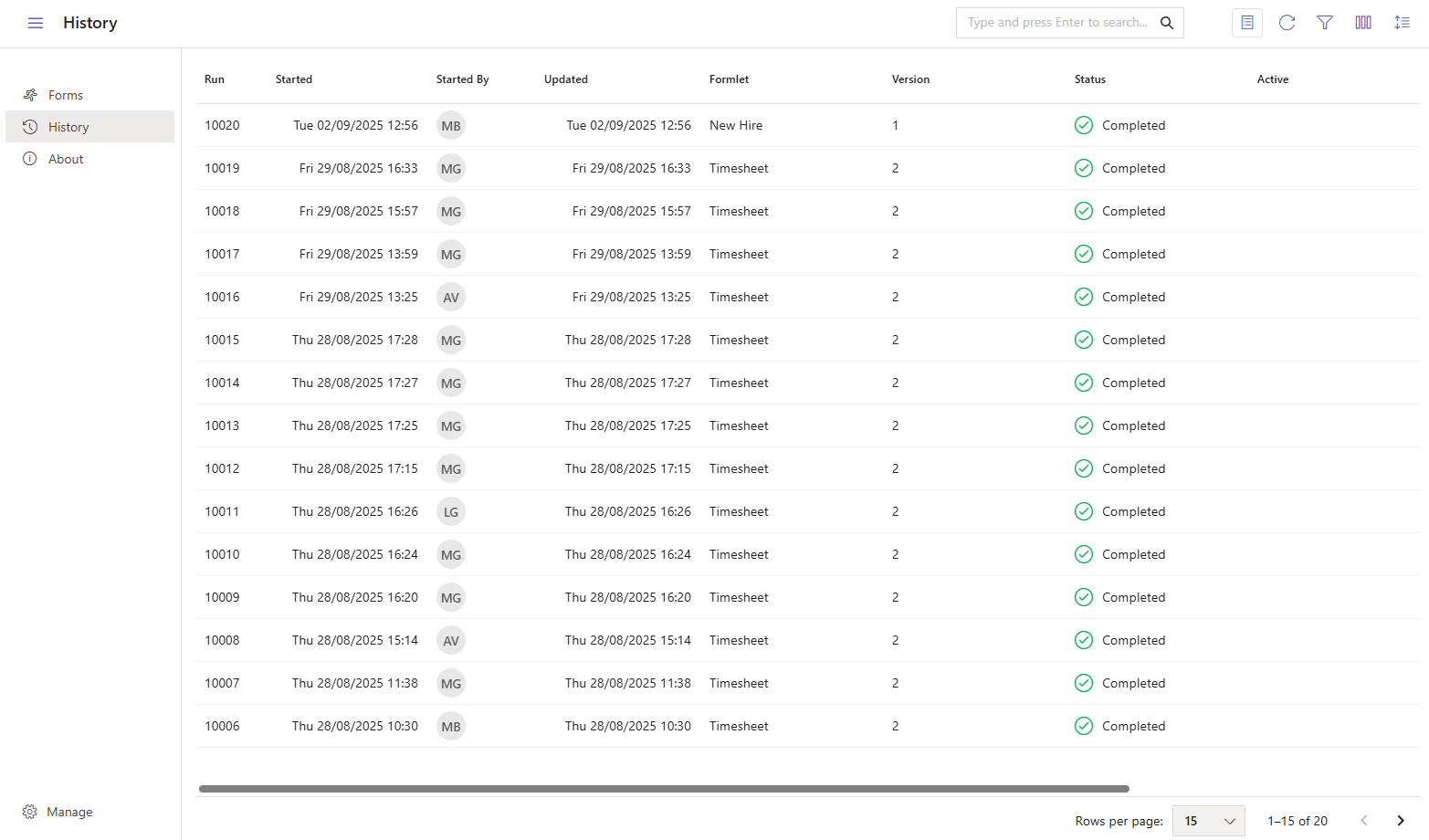
Here are the available columns:
| Column | Description |
|---|---|
| Run | The formlet run number. |
| Formlet | The formlet this activity is part of. |
| Status | The current status of the run (Running, Completed, Cancelled or Errored). |
| Started | The date and time when the run started. |
| Started By | The person who started the formlet. |
| Updated | The date and time of the last update. |
| Active | The current active step. |
| Ended | The date and time when the formlet run completed. |
| End Step | The step where the formlet completed. |
How to inspect the timeline
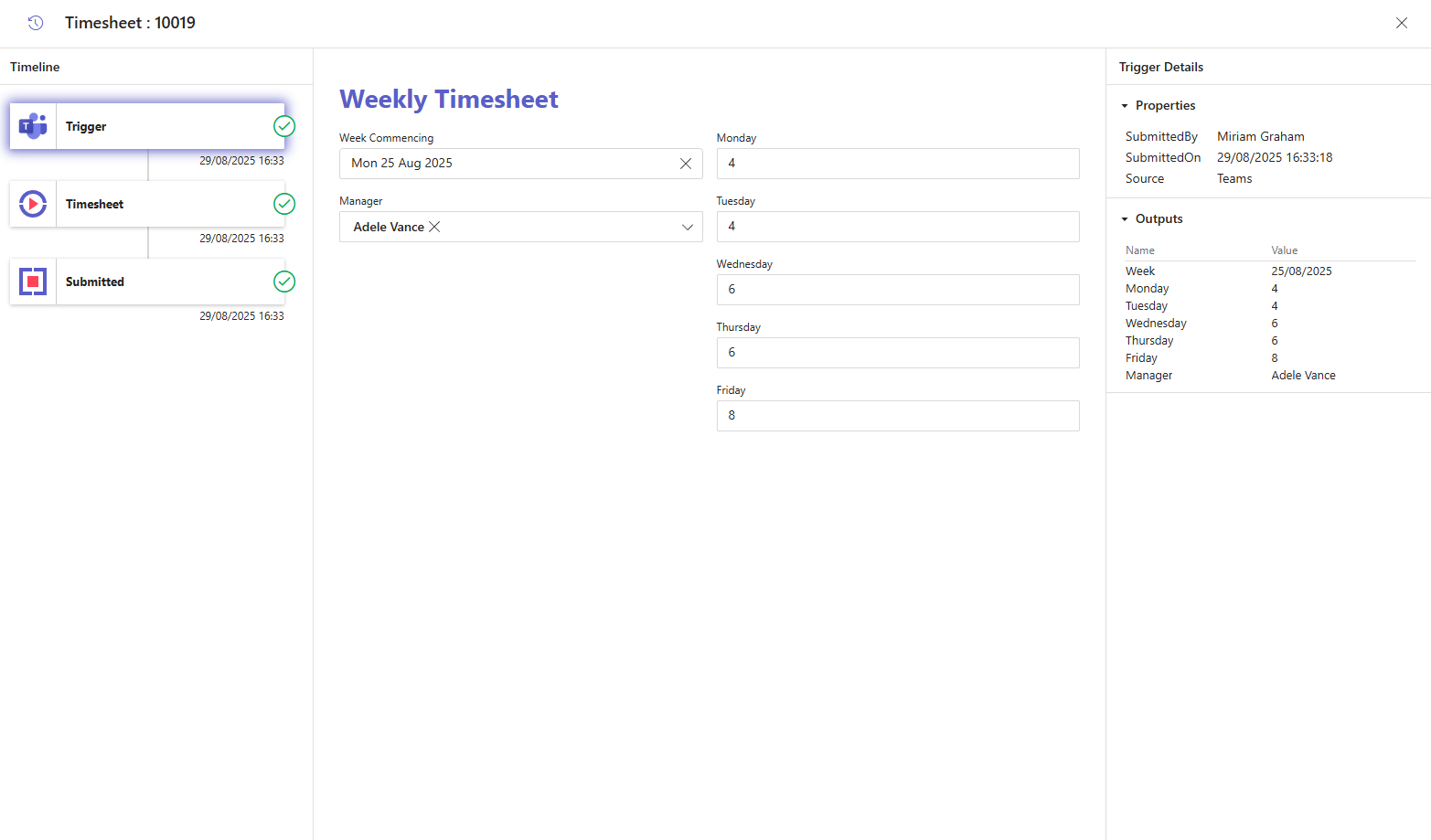
To review each step in an formlet run, including the people involved and the information exchanged, choose the View option from the menu.

This will open the timeline for the formlet run. In the left-hand Timeline panel, click on any step to see its details. If the step includes a form, it will appear in the center panel. The right-hand panel will show the step's properties, data, and other relevant information. For manual steps, you can also see who viewed and worked on the activity.
 ON THIS PAGE