
Use the Flow Builder to create your Formlets.
Open the Flow Builder by going to: Manage > Formlets > name > View > Edit.
Now let's see how to add and modify each of the different steps types.
Triggers
Every formlet needs at least one trigger. When you create a new formlet or use a template, a trigger is usually added automatically. At minimum, you'll have a trigger Placeholder to choose the type of trigger from the Add Trigger dialog. As one trigger is always required, you cannot remove the final trigger Placeholder.
Add a trigger
If there's a Placeholder, click the + Add Trigger button on the Placeholder.

This opens the Select trigger dialog where you can choose the trigger type.
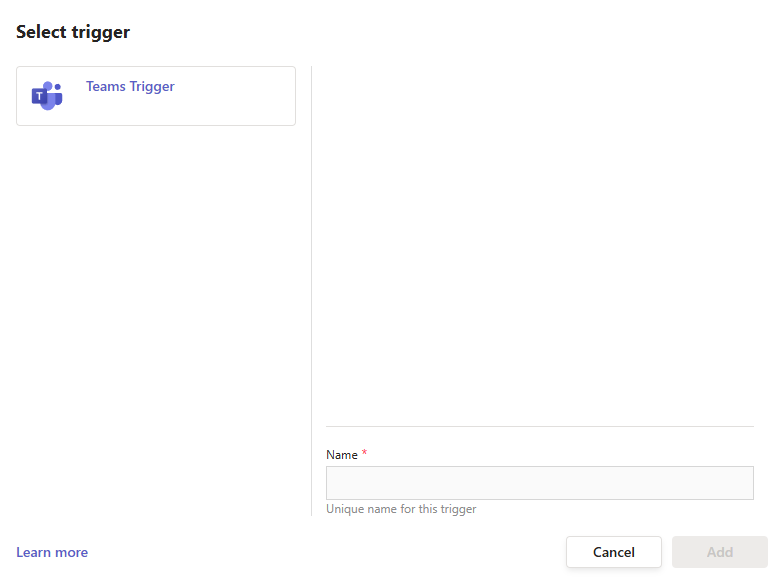
Replace a trigger
To replace a trigger, select Clear from the ... menu on the trigger.

This will remove the Trigger but keep the Placeholder. Then, just add your new Trigger as described above.
If you replace a Trigger and it's data is used in later steps, its data will no longer be available. This will cause errors when you Check and Finalise your formlet, which you'll need to fix.
Add another trigger
To add a second trigger to an formlet, click the ... menu on the Start step and select Add above.
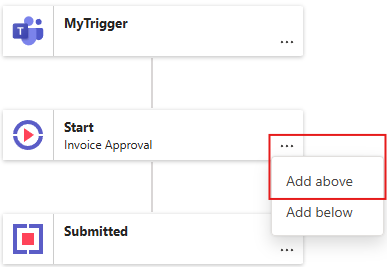
This will create a new trigger Placeholder.

Then, just add your new Trigger as described above.
Remove a trigger
To remove the Trigger but keep the Placeholder, click Clear. To remove both the Trigger and the Placeholder, click Remove. If it is the last Trigger, you can only click Clear because you can't remove the last Trigger Placeholder.
If you remove a Trigger and it's data is used in later steps, its data will no longer be available. This will cause errors when you Check and Finalise your formlet, which you'll need to fix. If you intend to remove it, that's okay.
If you accidentally removed the Trigger, you can hit Undo to restore it.
 ON THIS PAGE