To manage apps and permissions, go to Manage > Apps & Permissions. This opens the Apps & Permissions panel.
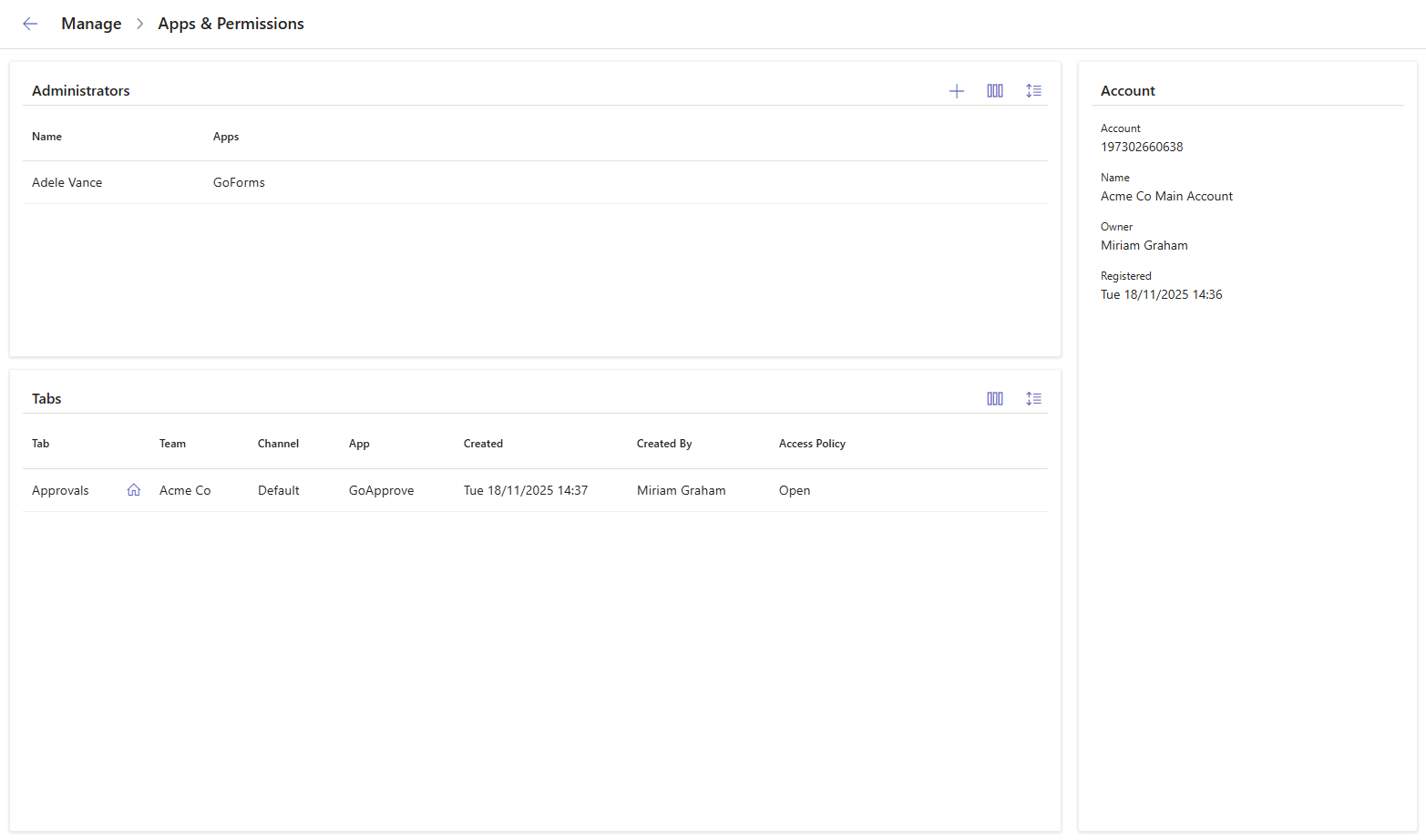
You can open this panel from any GoAutomate app. It always shows the same information, no matter which app you use.
The panel has three sections:
- Account: Shows account details such as the account number and account owner.
- Administrators: Lists the administrators assigned by the account owner.
- Tabs: Shows the Tabs created in each Team and Channel, and the app installed in each Tab.
Account section
The Account section shows the account number, account name, account owner, and the date the account was registered.
Administrators section
Available columns in this Administrators section are:
| Column | Description |
|---|---|
| Name | The administrator's name. |
| Applications | The App(s) that the administrator can manage. |
You can customize the display by choosing which columns to show and adjusting the row spacing using the toolbar. You can also rearrange the columns by dragging them.
Add account administrators
To add an account administrator, click the + icon in the Administrators section.

This opens the Add Account Admin dialog.
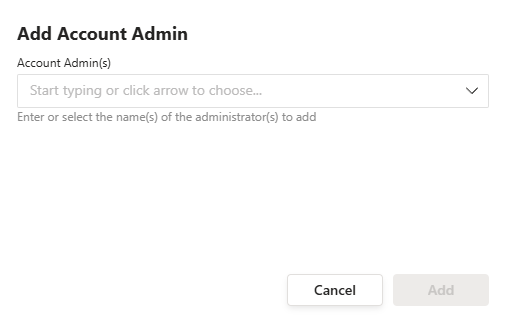
Select the administrators you want to add, then click Add.
Open the ... menu and select Update.
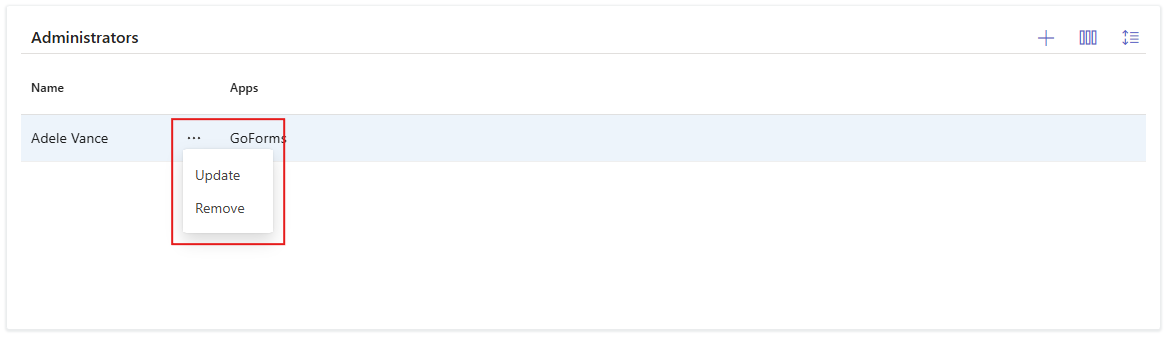
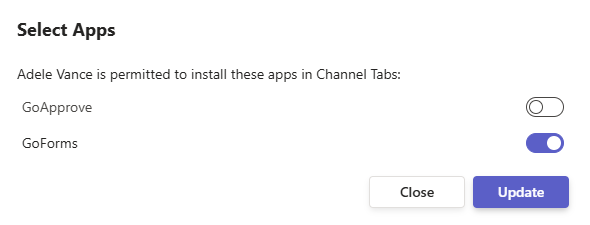
In the Select Apps dialog, choose the apps the account administrator can install and manage. Click Update when done.
Update account administrators
To update an account administrator, open the ... menu and select Update.
In the Select Apps dialog, choose the apps the account administrator can install and manage. Click Update when done.
Remove account administrators
To remove an account administrator, open the ... menu and select Remove.
Tabs section
Available columns in this Tabs section are:
| Column | Description |
|---|---|
| Tab | The name of the tab. |
| Team | The team where the tab is installed. |
| Channel | The channel within the team where the tab is installed. |
| Created | The date and time the tab was created. |
| Created By | The person who created the tab and installed the app. |
| App | The app installed in the tab. |
| Access Policy | Indicates if the app is 'Open' (accessible to all in the channel) or 'Restricted' (accessible only by invitation). |
You can customize the display by choosing which columns to show and adjusting the row spacing using the toolbar. Columns can be rearranged by dragging them.
 ON THIS PAGE