
To manage activities, go to the Inbox option in the menu.
The Inbox contains all the Activities you need to review and complete. These are Teams Activities, meaning they are form-based for you work on within 'Microsoft Teams'. Activities from different approval are grouped together in the Inbox. You can easily search, filter, and customize the view using the toolbar, including selecting which columns to display and adjusting row spacing.
You can sort any column to organize the activities as you prefer. You can also rearrange the columns by dragging them left or right.
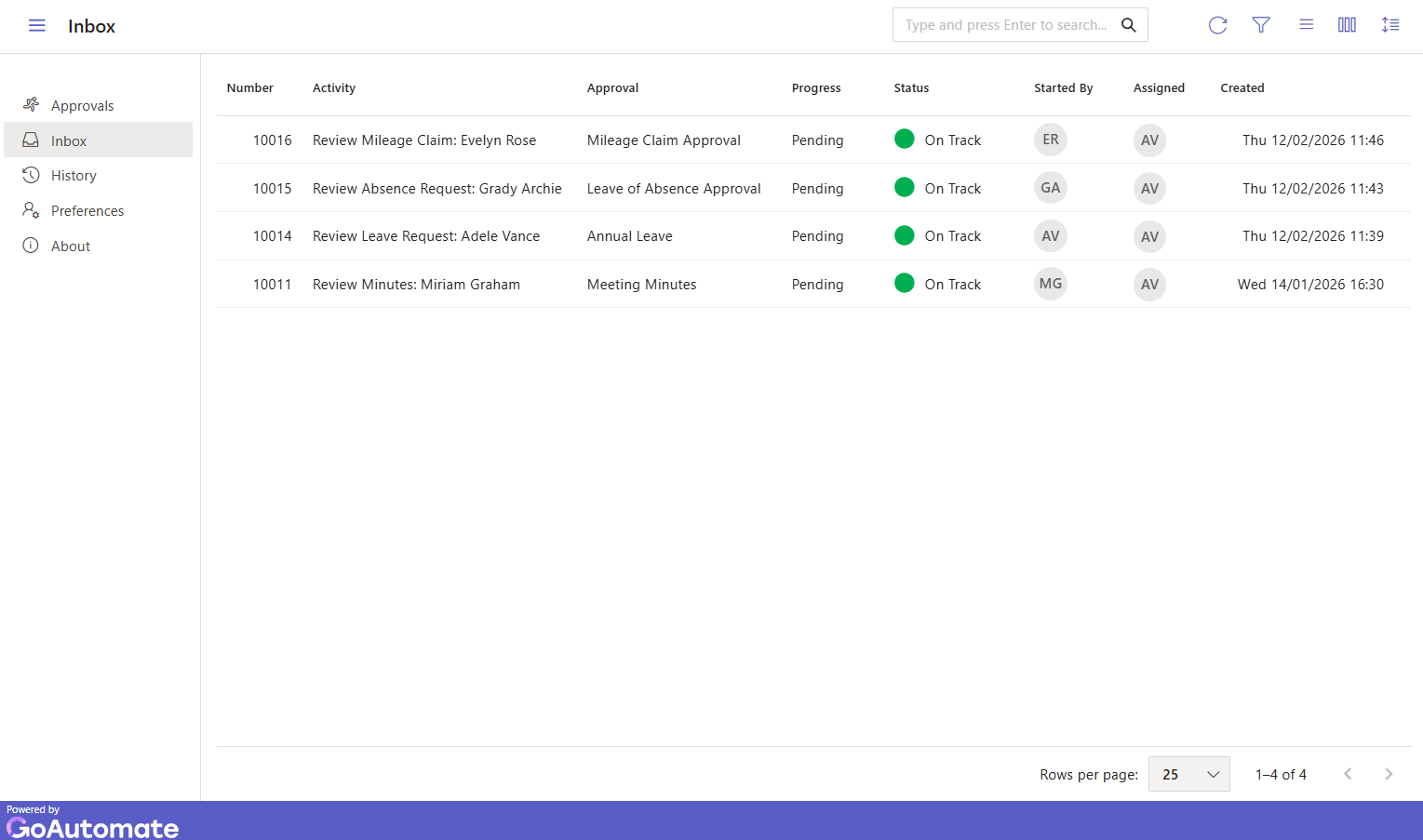
Here are the available columns in the Inbox:
| Column | Description |
|---|---|
| Activity | The name of the activity. |
| Number | The approval run number. |
| Approval | The approval this activity is part of. |
| Version | The approval version number. |
| Progress | Indicates the Activity’s stage, one of Upcoming, Pending, or Started. |
| Status | Shows the current time-based state of the Activity. |
| Milestone | Shows the next upcoming time-based milestone for the Activity. |
| Assigned | The people or groups assigned to the Activity. |
| Started By | The who or what started the approval. |
| Created | The date and time the Activity was created. |
| Started | The date and time the Activity was started. |
| Updated | The date and time of the last update. |
| Offered | The date and time the Activity was offered. |
| Due | The date and time the Activity is due. |
| Expires | The date and time the Activity will expire. |
You will only see Activities in your Inbox if you are directly assigned to them or if you're in a Group that has been assigned to them. If you're not assigned, the Activities won't appear in your Inbox.
Previewing activities
To preview an activity, click the Preview option in the menu, or hover over the activity name and select it.

In preview mode, you can only view the activity; you haven't started it yet.
Starting activities
From the menu, click the Start option.
If you're already previewing the activity, click the Start button.
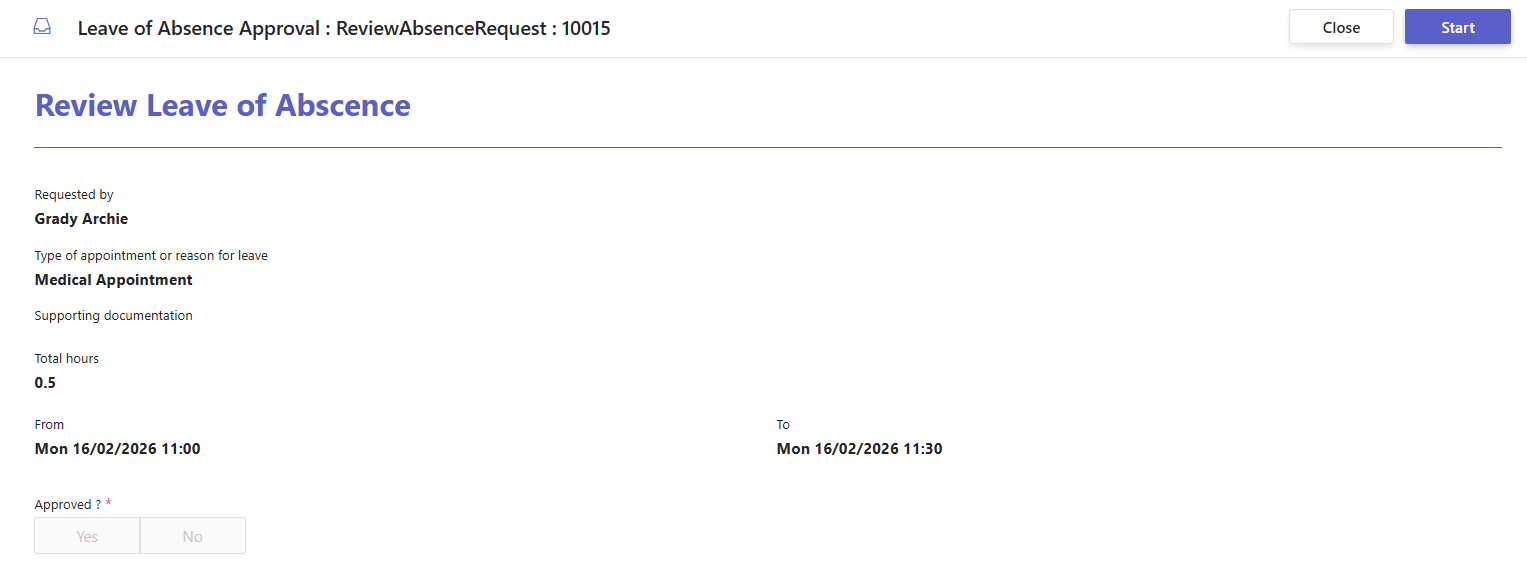
You can now start filling out the form as needed to complete the activity.
Saving activities
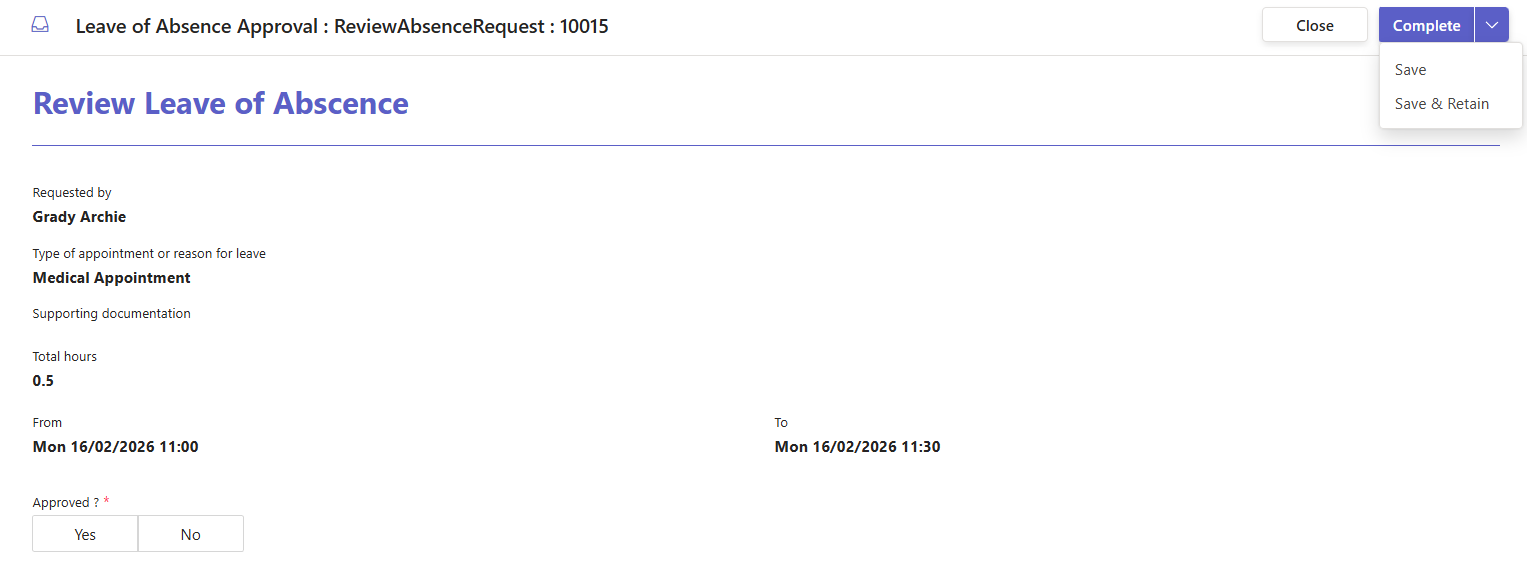
To save changes to an activity or keep it for later, click Save or Save & Retain from the drop-down button in the toolbar. If you choose to retain the activity, it will be removed from others who were assigned to it, so only you can see and work on it. Be aware that each activity can only be retained for a limited time. After that, the activity will no longer be retained by you and will be available to others who were originally assigned to it.
Resuming activities
To continue working on an activity that you or someone else started and saved, choose the Resume option from the menu.

Releasing activities
If you want to let others work on an activity you retained previously, select the Release option from the menu.

Completing activities
After filling in the form with all required information, click the Complete button in the toolbar. All fields will be checked, and if everything is correct, the activity will be marked as complete.
 ON THIS PAGE