
A Microsoft Teams Form Activity step is a task or action that someone in your organization needs to complete within Microsoft Teams. The person must have access to the Channel where the GoApprove is installed. The task will show up in their Inbox.
You can customise what information is provided for the Activity and what needs to be submitted when the Activity is done. The Activity can be assigned to one or more People or Groups, and assignments can be fixed or change based on certain conditions.
Properties
Configurable properties
The Teams Form activity step has the following configurable properties:
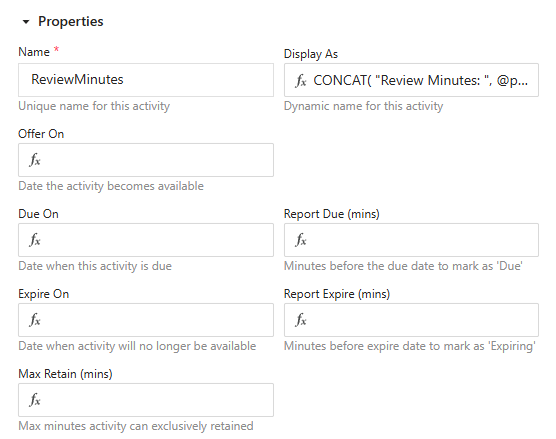
| Property | Description |
|---|---|
| Name | Give your activity a simple, easy-to-understand name. Begin with an action adjective (such as Review, Inspect, or Verify) followed by a clear, precise label that identifies the specific item or element involved, e.g. ReviewAnnualLeave. |
| Display As | A short, clear description that appears in the inbox to help others understand the activity. |
| Offer On | The datetime the activity shall be made ready to start |
| Due On | The datetime the activity should be completed |
| Report Due | The number of minutes before the DueOn datetime the activity should be marked as due |
| Expire On | The datetime the activity shall expire |
| Report Expire | The number of minutes before the ExpireOn datetime the activity should be marked as expiring |
| Max Retain | The maximum number of minutes a user can retain the activity |
System properties
The Teams Form Activity provides the following built-in properties, which you can use in formulas to check an activity’s status while it is in progress or after it has finished:
| Property | Description | Datatype |
|---|---|---|
| Name | The name of the activity | Text |
| Pending | Indicates the activity is not yet offered | Logical |
| Ready | Indicates the activity is available to start | Logical |
| Started | Indicates the activity has started | Logical |
| Completed | Indicates the activity has completed | Logical |
| Cancelled | Indicates the activity is cancelled | Logical |
| Expired | Indicates the activity has passed its expiration time | Logical |
| Errored | Indicates the activity has encountered an error | Logical |
| Withdrawn | Indicates the activity is withdrawn | Logical |
| OfferOn | The datetime when the activity became ready to start | Datetime |
| DueOn | The datetime when the activity is expected to complete | Datetime |
| ExpireOn | The datetime when the activity expires | Datetime |
| ReportDue | The number of minutes before DueOn when the activity is marked as due | Number |
| ReportExpire | The number of minutes before ExpireOn when the activity is marked as expiring | Number |
| MaxRetain | The maximum number of minutes a user may retain the activity | Number |
| Count | The number of times the activity has completed (for activities that loop back and repeat) | Number |
| CreatedOn | The datetime when the activity was created | Datetime |
| CompletedOn | The datetime when the activity completed | Datetime |
| CompletedBy.Person | The person who completed the activity | Person |
System properties are managed by GoApprove and give useful information for building approvals. You can use them in formulas to see who completed an Activity or to check the status of an Activity.
Form
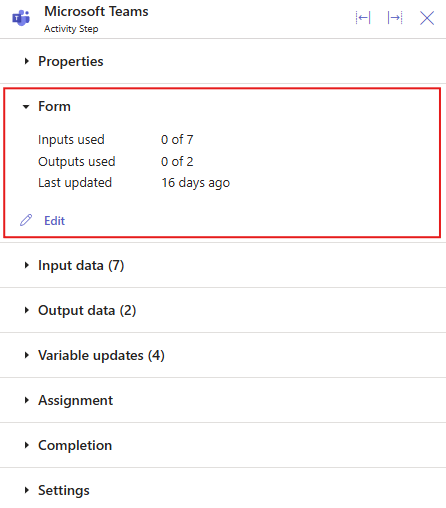
In the Form section, click Edit to open the Form Builder. You can also see how many Input data and Outdata data items are on your form and when it was last updated.
For more information on building forms, click here.
Input data
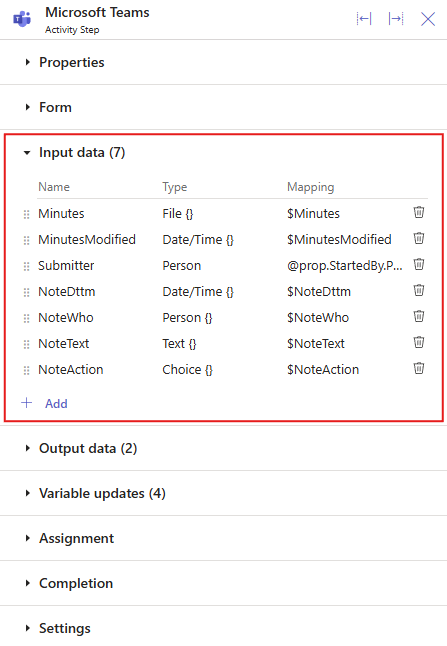
Input data is information that is provided to your Activity. It gets displayed by your Form.
To learn how to add Input data to an Activity, click here.
Output data
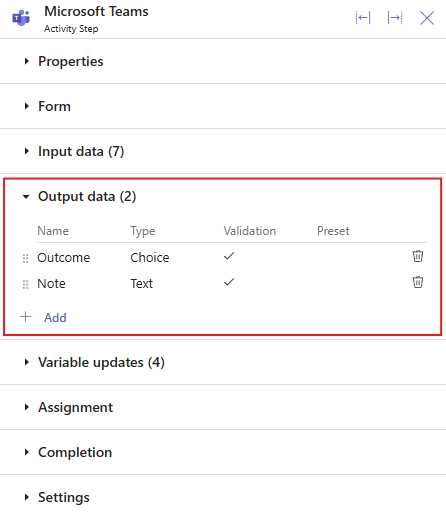
Output data is information that comes from your Activity. It gets captured by your Form and then used in the approval.
To learn how to add Output data to an Activity, click here.
Variable updates
You can update one or more variables before the Activity begins or after the Activity completes. Click Add, select the variable, and enter a formula.
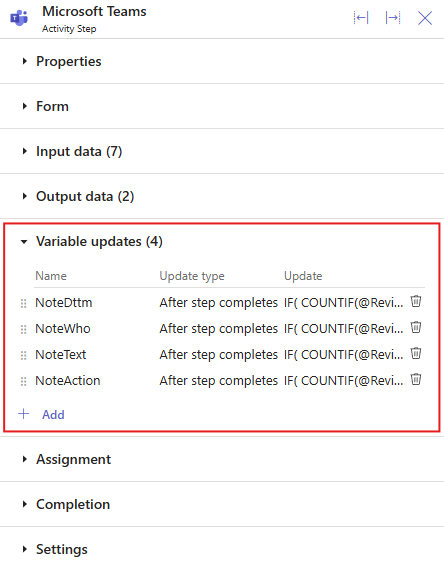
Learn more here.
Assignment
Use this section to choose who should be assigned the Activity.
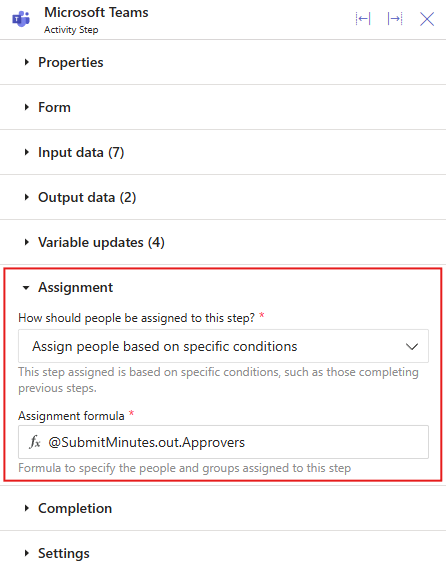
You can use a fixed assignment by selecting Assign these people, then choosing one or more People or Groups from the drop-down lists.
Alternatively, by selecting Assign people based on specific conditions and entering a formula, you can decide who should be assigned based on the rules you define.
To learn more about how assignment formulas work, click here.
Completion
Use this section to define how many people must complete the Activity step.
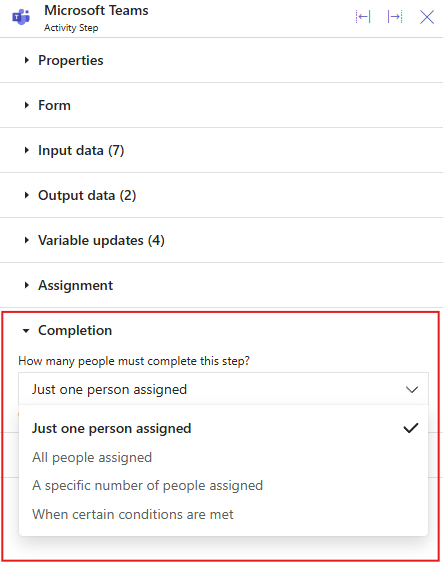
From How many people must complete this step?, choose one of the following options:
- Just one person assigned: Only one assigned person must complete the activity.
- All people assigned: Every assigned person must complete the activity.
- A specific number of people assigned: A set number or percentage of assigned people must complete the activity.
For more control, select When certain conditions are met. This option uses a Completion formula to decide when the activity is complete. To learn more, see Completion formulas.
 ON THIS PAGE