Input data applies to Teams Activities
Input data is the information an Activity needs to be completed.
- For manual Activities, you must define the Input data because it depends on what the person needs to perform the task.
- For automated Activities, the Input data is fixed and cannot be changed.
You must specify Input data for all manual Activities.
To add or edit Input data, open your approval in the Flow Builder (see here).
Click the Activity, then expand the Input data section.
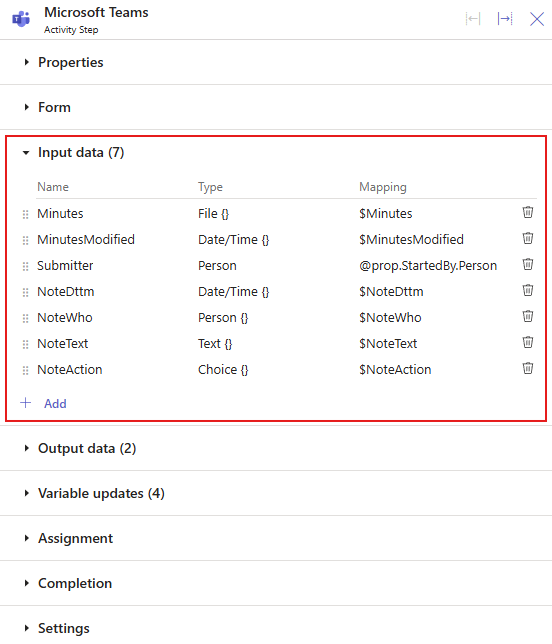
Here’s how to add and manage Input data.
Adding inputs
To add an input, click +Add in the Input data section to open the Edit input dialog.
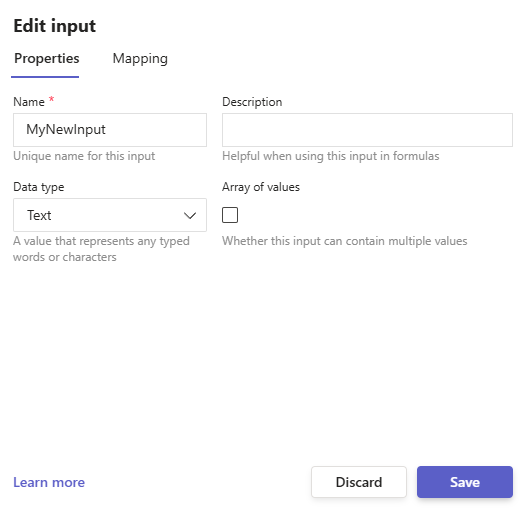
Enter a Name that clearly describes the input data. For tips on how to name your data, click here.
You can also add an optional Description to explain the purpose of the data.
Select the appropriate Datatype and whether a single value or array of values.
For help on choosing the right Datatype, click here.
Adding a Description to your inputs helps others understand their purpose. The description also appears in the Formula builder as a reminder of what the data represents.
Mapping data to inputs
After adding inputs, we need to map data to it for use in the Activity.
Open the Edit input dialog and click the Mapping tab.
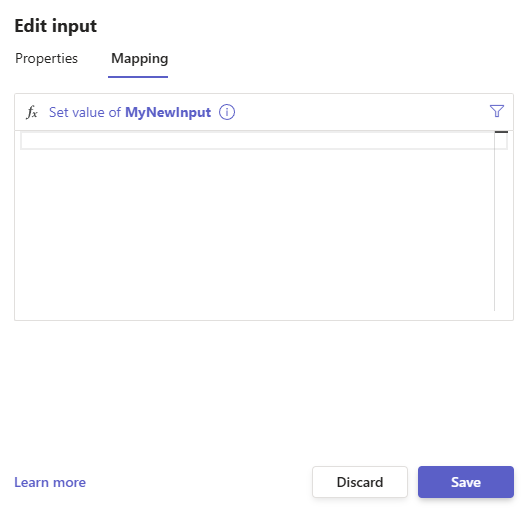
For more details on mapping data into Inputs, see Input Mapping Formulas.
Updating inputs
To edit an input, hover over it and click to open the Edit input dialog.
Here, you can update the Name, Description, and Datatype.
Renaming or changing an input's name or datatype can break formulas and cause errors in later steps. These errors will appear when you run Check or Finalize, and you'll need to fix them.
If you made the change on purpose, no problem. If it was a mistake, use Undo to revert it.
Rearranging inputs
If you need to change the order of your inputs, just click and hold the drag handle, then move the input to where you want it and release.
Removing inputs
To remove an input, hover over it and click the trash can icon.
Removing an input used in later steps can break formulas. Errors will show up when you run Check or Finalize, and you'll need to fix them.
If you removed it on purpose, that's okay. If it was a mistake, use Undo to restore it.
 ON THIS PAGE