
What do we mean by Approval
Approval, in the context of business, refers to the steps taken to review, verify, and officially authorise something to proceed or be accepted. An approval process is a process whose main purpose is to grant approval. However, many other business workflows may include one or more approval steps as part of a larger process.
This playbook covers a set of approval patterns that can be used on their own or combined with other patterns to support more complex workflows.
Key Points to Consider
Automated vs. Manual Approval Steps
Automated approval steps follow predefined rules to make decisions without human involvement. These rules take the form of Branch path conditions.
Example: If an expense claim is under $100 and has a receipt, approve automatically. Otherwise, send it to a manager.
Manual approval steps require a person to review the request and decide whether to approve or reject it. These take the form of Microsoft Teams Activities. You choose what information to show to help them make an informed decision.
Single-Person vs. Multi-Person Approvals
Some approvals only need one person. Others may involve a combination of:
- Multiple people approving,
- Approvals in a specific order, or
- One or more people chosen from a specific group or groups.
Same vs. Different Approval Steps
If all approvers are making the same decision using the same information, model this as a single Activity step. You can:
- Assign the step to multiple people at once (using Completion formulas), or
- Assign it one at a time (using a Loopback Control Step) for sequential approvals.
If each approver needs to see different information or perform different actions, use different Activity steps, each tailored to that approver’s task.
The List of Approvers
Approvers can be set in different ways:
- User-defined: The submitter decides who should approve. This is fine, since all actions are audited.
- Fixed: The list of approvers is predefined and cannot be changed.
- Conditional: Approvers depend on values like amount, time of day, or other criteria.
- Group-based: Assign to a group so members can change over time.
- Contextual: Approvers are chosen based on who completed an earlier step or started the approval process.
Approval Patterns
Here we present four standard approval patterns. These form the basis for the majority of approvals found in business.
Sequential Approval
Sequential Approval means something must be approved by several people in a set order. The sequence matters. If one person rejects, the whole process stops.
There are two main ways to handle sequential approvals: using the Same Activity or using Different Activities.
- With the Same Activity, each approver sees the same information and makes the same decision.
- With Different Activities, each step can show different information and ask for different decisions.
- Same Activity
- Different Activities
In this pattern, every approver reviews the same information, makes the same decision, and records it.
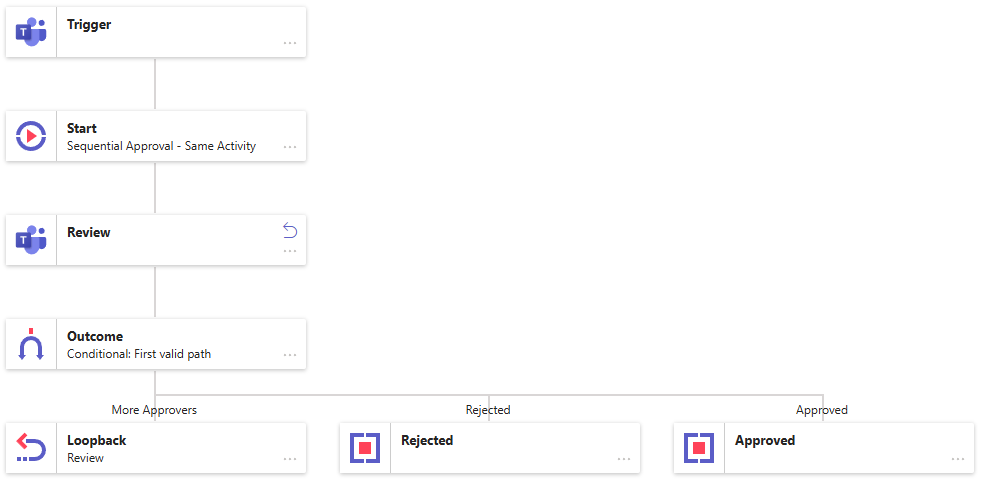
Key characteristics:
- Requires a list of approvers.
- The number of approvers can change (not fixed). A loopback cycles through all approvers in order.
- After each decision, the system checks the result:
- If approved → go back to Review and assign the next approver.
- If rejected → stop the process and mark as Rejected.
- Continue until there are no more approvers left.
In this pattern, each approver may see different information and make different types of decisions. These approvals usually have fixed steps and a set number of approvers.
For example, the process may have three review steps, each assigned to a specific person or group of people.
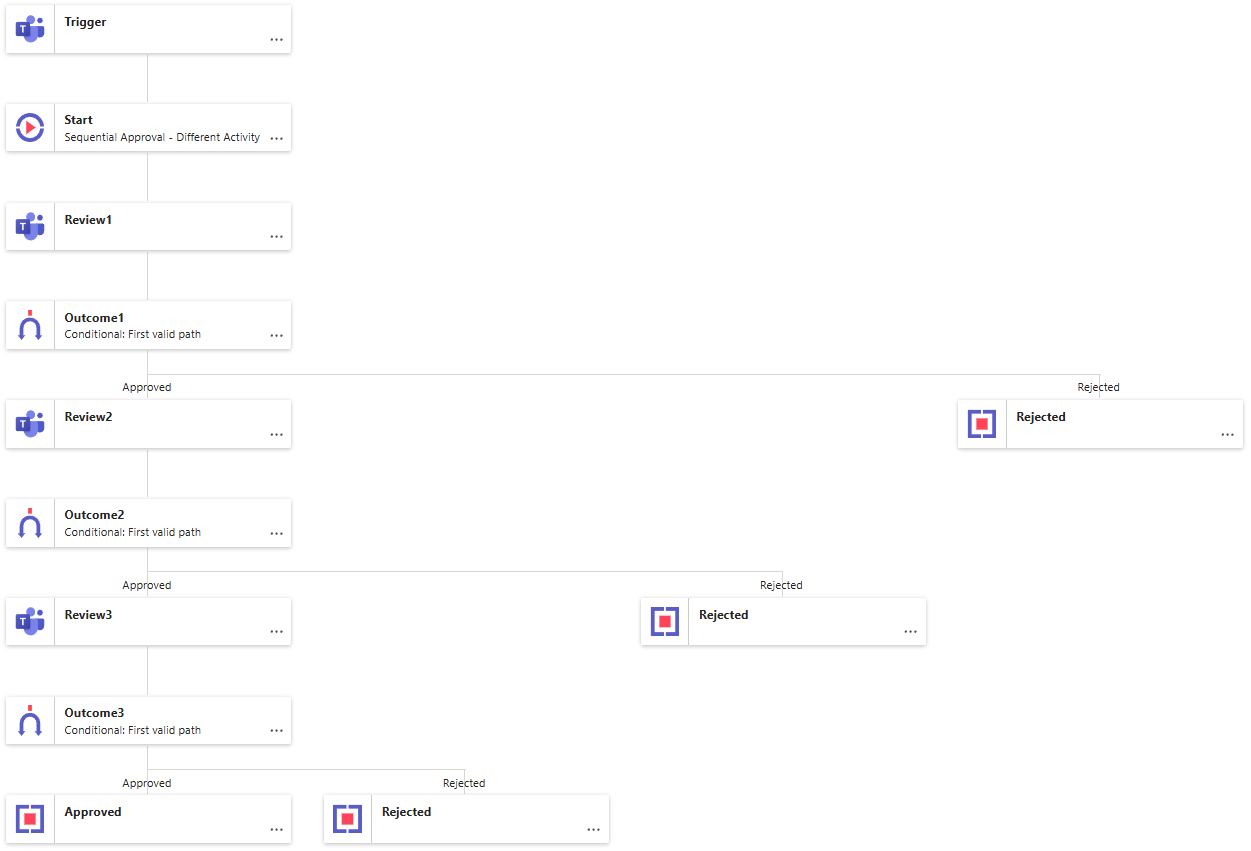
Key characteristics:
- Requires a fixed number of approval steps.
- After each Review step, the system checks the result:
- If approved → go to the next Review step.
- If rejected → stop the process and mark as Rejected.
- Continue until there are no more approval steps left.
Parallel Approval
Parallel Approval means a decision must be approved by several people, and they can do so independently, at the same time. Each person can approve or reject without waiting for the others.
There are two ways to set this up: using the Same Activity or using Different Activities.
- With the Same Activity, all approvers see the same information and make the same type of decision.
- With Different Activities, each approver may see different information and make different decisions.
- Same Activity
- Different Activities
In this setup, all approvers review the same information, make their decision, and record it.
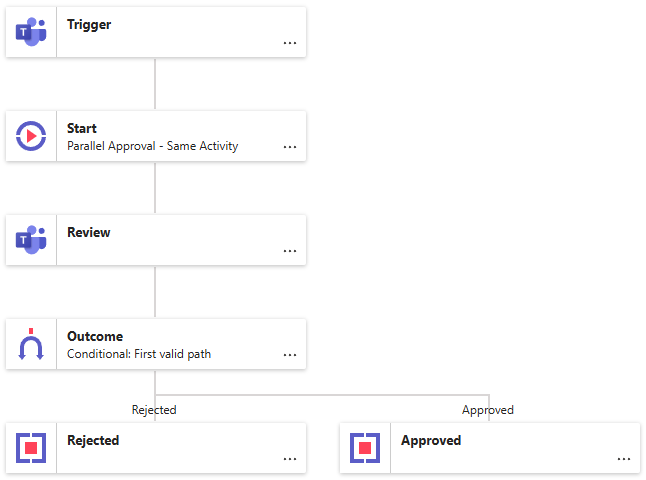
Key characteristics:
- Needs a list of approvers.
- Completion rules decide how many of the assigned people must complete the activity.
- Once complete, the overall decision is determined using one of the completion Patterns.
In this setup, each approver reviews different information and makes their own type of decision. The process usually has a set number of approval steps define in parallel.
For example, there might be three review steps, each assigned to a specific person or groups of people.
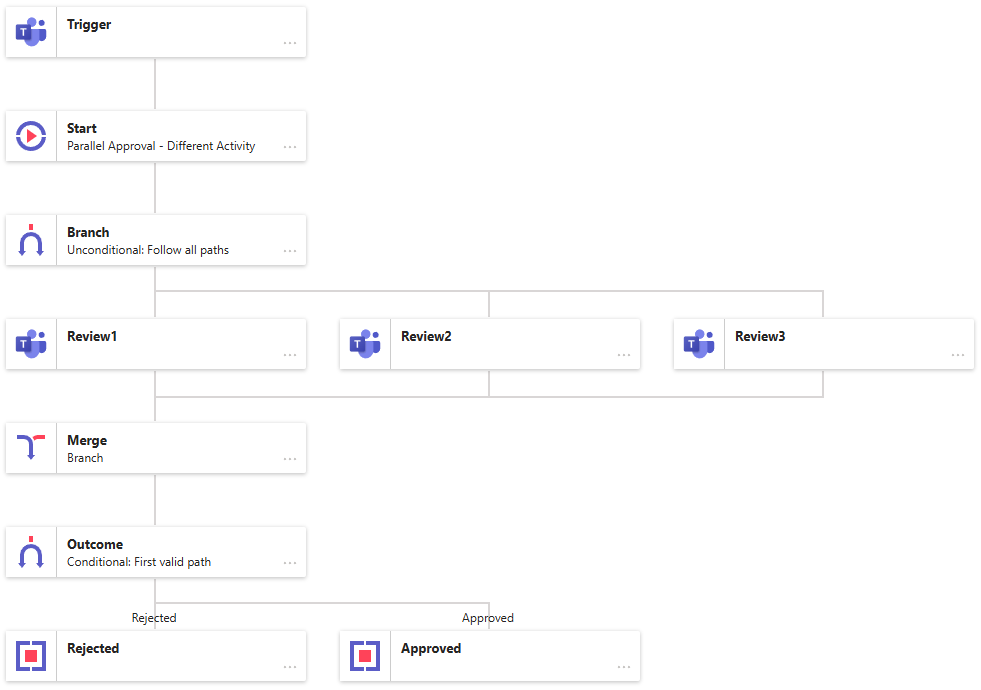
Key characteristics:
- Requires a fixed number of approval steps.
- After all steps are complete, the overall decision is determined using one of the completion patterns.
Completion Patterns
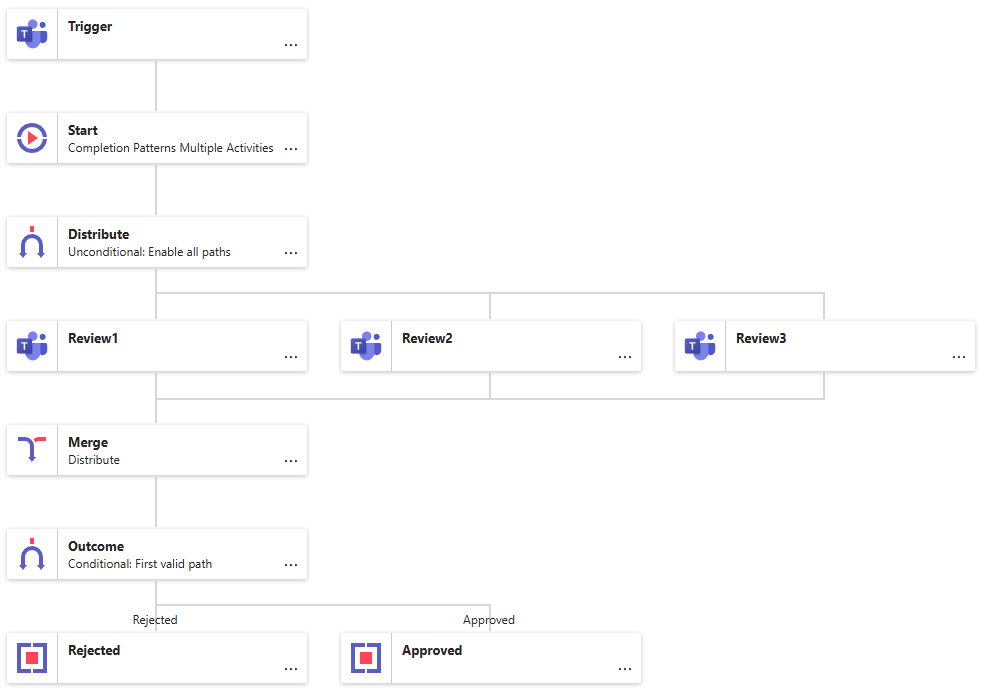
Completion patterns define how many people must finish an activity. Each activity is a step in the approval model, shown as a box. More than one person can be assigned to an activity, and multiple activities can run at the same time.
Completion decides how many of the assigned people must finish the activity. This is set using Completion rules. An activity is only marked complete when these rules are met.
An activity can also be completed automatically when its Expire On timer runs out. This prevents activities from being left unfinished and helps meet SLAs.
Before looking at approval-specific patterns, here are two reference models we will use to explain them:
- Single Activity
- Multiple Activities
The standard model where several people are assigned the same activity, and we set how many must complete it.
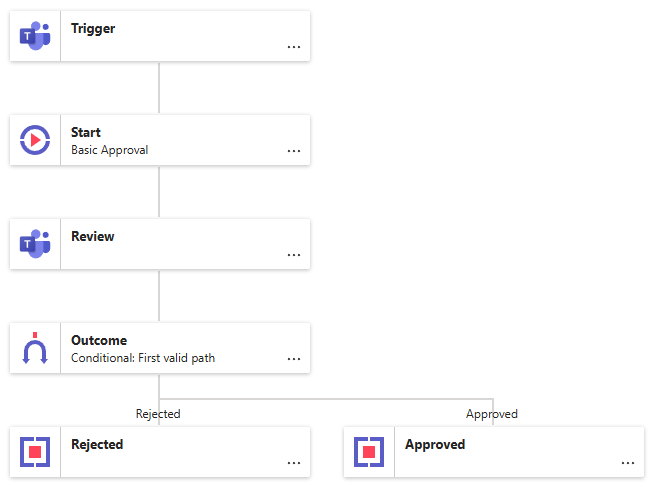
A model where different people are assigned different activities, and the combined results decide the overall outcome.
Any-One-of-Many Approval
This is the default completion method. Even if multiple people are assigned to an Activity, only the first completed response is counted and used.
Reference: Completion Pattern Reference Model - Single Activity.
Steps to set it up:
-
Allow only one response to complete the step:
In the Completion rules of the Review Activity, set it so that just one assigned person needs to finish the review.
Other ways to configure the same rule are:
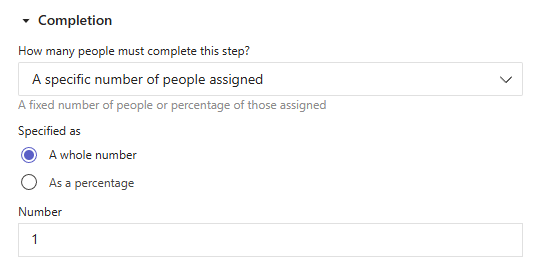
and:
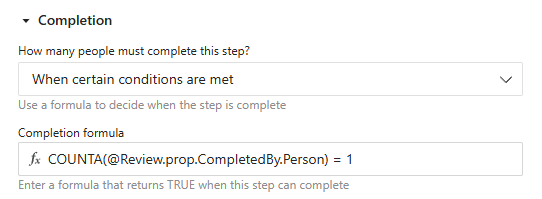
With the completion formula:
COUNTA(@Review.prop.CompletedBy.Person) = 1
Unanimous Approval
Unanimous Approval means that every member must agree. This method is often used for important decisions where approval from all assigned participants is required.
Reference: Completion Pattern Reference Model - Single Activity.
Example: All shareholders must approve a proposal before it can move forward.
Steps to set it up:
-
Set who must complete the review:
Use the Completion rules in the Review Activity to specify that all assigned participants must respond.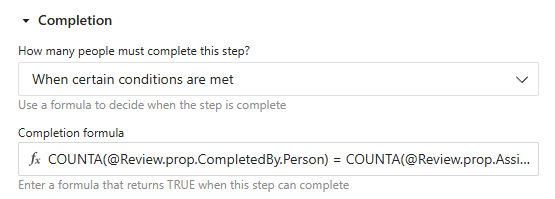
COUNTA(@Review.prop.CompletedBy.Person) = COUNTA(@Review.prop.AssignedTo)Every assigned person must complete the review.
-
Add the approval condition: Create a Path Condition for the Approved path:
MATCH(?approved, @Review.out.Outcome) = COUNTA(@Review.prop.AssignedTo)The request is approved only if everyone votes "approved."
Simple Majority Approval
Simple majority means more than 50% of votes must be in favour. The main question is when to check the results. This is usually done by setting a response deadline.
Reference: Completion Pattern Reference Model - Single Activity.
Example: Ask for approval and give approvers 3 business days to reply. There is no minimum number of responses in this example. (You could add a quorum requirement if needed - see below.)
Steps to set it up:
-
Set the response deadline:
Use the Expire On property to set how long people have to reply.WORKDAY(NOW(), 3)The review ends after 3 business days.
-
Define who can reply:
Set the Completion rules in the Review step to decide who can take part.
Everyone assigned to the Review step can respond.
-
Set the approval condition:
Add the path condition formula for the Approved path:AND
(
// at least 1 person completed
COUNTA(@Review.prop.CompletedBy) >= 1,
// more than 50% approve
MATCH(?approved, @Review.out.Outcome) > ( 0.5 * COUNTA(@Review.prop.CompletedBy.Person) )
)At least one person must respond, and more than 50% must approve.
Absolute Majority Approval
Absolute majority means more than 50% of all eligible voters (everyone assigned to the review) need to approve. If over half approve, the outcome is decided immediately, without waiting for the rest. If this threshold is not reached, the process continues until the deadline.
Reference: Completion Pattern Reference Model - Single Activity.
Example: Request approval and give approvers 10 business days to respond.
Steps to set it up:
-
Set the response deadline:
Use the Expire On property to define how long people have to respond.WORKDAY(NOW(), 10)The review ends after 10 business days.
-
Define who can vote:
Set the Completion rules in the Review Activity to specify who must respond.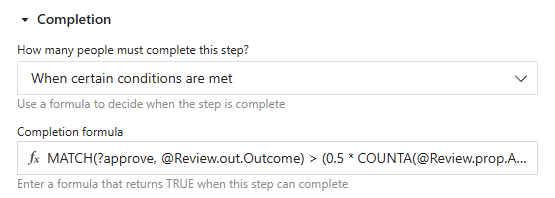
MATCH(?approve, @Review.out.Outcome) > (0.5 * COUNTA(@Review.prop.AssignedTo))The review can complete once more than 50% of assigned people approve.
-
Set the approval path:
Add a Path Condition for the Approved branch:MATCH(?approve, @Review.out.Outcome) > (0.5 * COUNTA(@Review.prop.AssignedTo))Approval requires more than 50% of assigned voters.
Simple Supermajority Approval
A simple supermajority means approval requires more than a set percentage, not just the standard 50% used in a simple majority. It works the same way as Simple Majority Approval but with a higher threshold.
Reference: Completion Pattern Reference Model - Single Activity.
Example: Approval needs at least 90% of votes cast.
Steps to set it up:
-
Set the response deadline:
Same as Simple Majority Approval. -
Define who can reply:
Same as Simple Majority Approval. -
Set the approval condition:
Add the formula for the Approved path:AND
(
// at least 1 person responded
COUNTA(@Review.prop.CompletedBy) >= 1,
// more than 90% approve
MATCH(?approved, @Review.out.Outcome) > ( 0.9 * COUNTA(@Review.prop.CompletedBy.Person) )
)At least one person must respond, and over 90% must approve.
Absolute Supermajority Approval
An absolute supermajority means approval requires more than a set percentage of voters, not just the standard 50% used in an absolute majority. It works the same as Absolute Majority Approval but with a higher threshold.
Reference: Completion Pattern Reference Model - Single Activity.
Example: At least 85% of eligible voters must approve.
Steps to set it up:
-
Set the response deadline:
Same as Absolute Majority Approval. -
Define who can vote:
Same as Absolute Majority Approval. -
Set the approval condition:
Add the formula for the Approved path:MATCH(?approve, @Review.out.Outcome) > (0.85 * COUNTA(@Review.prop.AssignedTo))Approval requires more than 85% of assigned voters.
Quorum-Based Approvals
A quorum means a decision is only valid if a minimum number or percentage of people respond.
Reference: Completion Pattern Reference Model - Single Activity.
Example: At least 4 reviewers must respond before the approval can proceed.
Steps to set it up:
-
Set the quorum as a number:
Add this condition to the Approved or Rejected path formulas (not as a Completion rule on the Review Activity). This way, the decision includes all responses, not just the first 4.COUNTA(@Review.prop.CompleteBy.Person) >= 4At least 4 people must respond.
Example: At least 25% of all assigned reviewers must respond before the approval can proceed.
Steps to set it up:
-
Set the quorum as a percentage:
Add this condition to the Approved or Rejected path formulas (not as a Completion rule on the Review Activity). This way, the decision considers responses from all assigned people.COUNTA(@Review.prop.CompleteBy.Person) > (0.25 * COUNTA(@Review.prop.AssignedTo))At least 25% of assigned people must respond.
Named Individual Approval
Named individual approval means a request is only approved if a specific person (such as the CEO, General Counsel, or Founding Partner) gives their approval. This rule is often added on top of another approval method.
Reference: Completion Pattern Reference Model - Single Activity.
Example: Even if everyone else agrees, the request will only be approved if Adele Vance clicks Approve.
Steps to set it up:
-
Require approval from a specific person:
Update the Approved or Rejected path condition formula so it only passes if that person has accepted.AND
(
// check if Adele Vance has completed the activity
MATCH("Adele Vance", @Review.prop.CompleteBy.Person.Name) > 0,
// check if Adele Vance’s outcome was “accepted”
EXACT(INDEX(@Review.out.Outcome , MATCH("Adele Vance", @Review.prop.CompleteBy.Person.Name)), ?accepted)
)This ensures the request is approved only if Adele Vance both completes the Review and marks it as accepted.
Dual-Key Approval
Dual-key approval means that approval is only valid if two specific people both agree. If either person rejects or doesn’t respond, it fails.
Reference: Completion Pattern Reference Model - Single Activity.
Example: A request is only approved if both the CFO (Adele) and the CTO (Megan) accept it.
Steps to set it up:
-
Assign both reviewers:
Make sure both Adele and Megan are assigned so each can respond. -
Set the approval condition:
Update the path condition formula to require both approvals.// TRUE only if both Adele and Megan approve
AND
(
// Adele must complete the review
MATCH("Adele Vance", @Review.prop.CompleteBy.Person.Name) > 0,
// Adele’s outcome must be Accepted
EXACT(INDEX(@Review.out.Outcome, MATCH("Adele Vance", @Review.prop.CompleteBy.Person.Name)), ?accepted),
// Megan must complete the review
MATCH("Megan Bowen", @Review.prop.CompleteBy.Person.Name) > 0,
// Megan’s outcome must be Accepted
EXACT(INDEX(@Review.out.Outcome, MATCH("Megan Bowen", @Review.prop.CompleteBy.Person.Name)), ?accepted)
)Both Adele and Megan must finish the Review and select Accepted.
Veto Power
Veto power gives a specific person the ability to block a decision, even if everyone else approves. It is usually added on top of another approval method.
Reference: Completion Pattern Reference Model - Single Activity.
Example: If Adele Vance rejects the request, it is automatically rejected — even if all others approve.
Steps to set it up:
-
Add a veto condition for the chosen person:
Update the Approved or Rejected path condition formula to check if that person used their veto.// Returns TRUE if Adele has vetoed (rejected)
AND
(
// Check if Adele Vance completed the activity
MATCH("Adele Vance", @Review.prop.CompleteBy.Person.Name) > 0,
// Get Adele’s outcome and confirm it equals "Reject"
EXACT(INDEX(@Review.out.Outcome , MATCH("Adele Vance", @Review.prop.CompleteBy.Person.Name)), ?rejected)
)If Adele Vance completes the review and selects "Reject," her decision overrides everyone else’s.
Tacit Approval
Tacit approval means something is approved automatically if no one rejects it before the deadline.
Reference: Completion Pattern Reference Model - Single Activity.
Example: If no one rejects the request within 5 business days, it is approved.
Steps to set it up:
-
Set the review deadline:
Use the Expire On property to define how long people have to respond.WORKDAY(NOW(), 5)The review ends after 5 business days.
-
Define who can respond:
Set the Completion rules in the Review step to specify who is allowed to review.Everyone assigned to the Review step can respond.
-
Set the approval condition:
Add a path condition for the Approved path:MATCH(?rejected, @Review.out.Outcome) = 0If no one rejects, the request is approved.
Plurality
Plurality is used when there are more than two options. With only two options, it works the same as majority approval. For plurality to apply, there must be at least three choices. It is most common in candidate voting, but it can also be useful in other decisions. In plurality voting, the option with the highest number of votes wins. This method also requires a voting deadline.
Reference: Completion Pattern Reference Model - Single Activity.
Example: The team is choosing food for the company night out: Italian, Mexican, or Japanese. Voting ends on 17 June 2025 at 1:00 pm. Once the deadline passes, the cuisine with the most votes will be chosen.
Steps to set it up:
-
Set the voting deadline:
Use the Expire On property in the Review Activity to define when voting closes.DATE(2025, 6, 17) + TIME(13, 0, 0)Voting closes on 17 June 2025 at 1:00 pm.
-
Add voting options:
Create a Cuisine output in the Review Activity. Use the datatype Choice and add the options: italian, mexican, and japanese.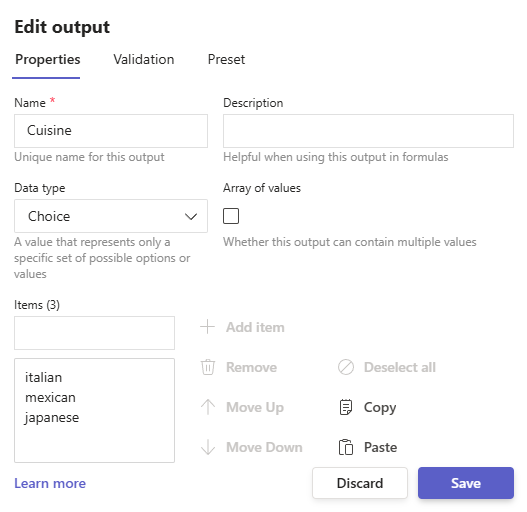
-
Define who can vote:
Set the Completion rules in the Review Activity to decide which people are allowed to vote.Everyone assigned to the activity can cast a vote.
-
Set the winning conditions:
Add Condition formulas to each path, one for each cuisine. For example, the Italian path would have:AND
(
COUNTA(@Review.prop.CompleteBy.Person) >= 1,
MATCH(?italian, @Review.out.Cuisine) > MATCH(?mexican, @Review.out.Cuisine)
MATCH(?italian, @Review.out.Cuisine) > MATCH(?japanese, @Review.out.Cuisine)
)At least one person must vote, and Italian must have more votes than both Mexican and Japanese.
Multiple Activity Approval Patterns
So far, approval patterns have focused on a single Activity, where multiple people are assigned with rules about how many must complete it and other conditions, such as the number of approvals required.
In some cases, you may need to use different Activities, each with its own approval rules. Below are two common approaches, based on the model Completion Pattern Reference Model - Multiple Activities.
Parallel - Require All Activities
A Branch directs control to two or more Activities. Each Activity is assigned to specific people. Approval is only considered once every Activity has been completed.
Reference: Completion Pattern Reference Model - Multiple Activities.
Steps to set it up:
-
Set the branch type and mode:
Configure the Branch Type and Mode so control is passed to every Activity.
Every Review activity is enabled and needs to complete.
-
Set the approval condition:
Use the Outcome from each Review Activity to decide the final result. For a unanimous approval, every Activity must return 'approve'. For example:// TRUE only if the Outcome from all Review activities is approve
AND
(
// Review1 outcome must be approve
EXACT(@Review1.out.Outcome, ?approve),
// Review2 outcome must be approve
EXACT(@Review2.out.Outcome, ?approve),
// Review3 outcome must be approve
EXACT(@Review3.out.Outcome, ?approve)
)Every Review Activity must return an 'approve' outcome for the overall decision to be approved.
One of Many – First Activity Decides
A Branch sends control to two or more Activities, each assigned to different people. As soon as the first Activity is completed, all other Activities are withdrawn. The final decision is based only on the result of the Activity that completed.
Reference: Completion Pattern Reference Model - Multiple Activities.
Steps to set it up:
-
Configure branch type and mode:
Set the Branch Type and Mode so that every Activity starts at the same time.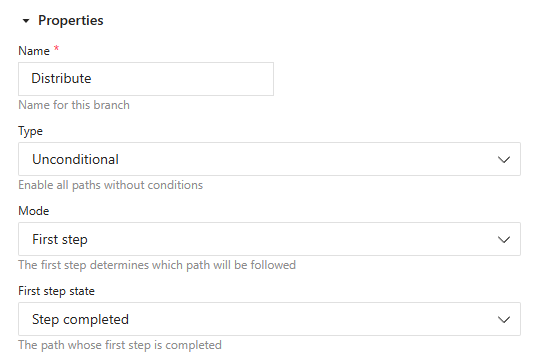
All Activities begin, but the first one that completes causes the others to be withdrawn.
-
Define the approval rule:
Test the Outcome from each Review Activity. Since only one will finish, approval comes from whichever Activity completes first.// TRUE if the first completed Review Activity outcome is approve
OR
(
// Review1 outcome approve
EXACT(@Review1.out.Outcome, ?approve),
// Review2 outcome approve
EXACT(@Review2.out.Outcome, ?approve),
// Review3 outcome approve
EXACT(@Review3.out.Outcome, ?approve)
)If any of the Review Activities returns 'approve', then the decision is approved.
Assignment Patterns
Assignment patterns decide who is assigned to each Activity. This is different from Completions, which defines how many of the assigned people must complete the Activity. Let’s look at the different types of Assignment patterns.
User-defined
User-defined assignment means that approvers are chosen by a person during the process. For example, the user who starts an approval can select one or more approvers. A reviewer can also nominate additional approvers if needed. In some cases, the first approver may be required to choose the next approver, or no further approvers if none are needed.
Steps to set it up:
- Add an output with the datatype Person to either the Teams Trigger or the Teams Activity.
- If you need to allow more than one approver to be selected, set the datatype to Array of values.
Fixed
Fixed assignment means the approvers are set in the approval process and cannot be changed. There can be more than one approver in a step, and entire groups can also be assigned.
Steps to set it up:
-
Assign specific people or groups:
In the Review Activity, go to Assignment rules. Choose Assign these people, then select the required People or Groups.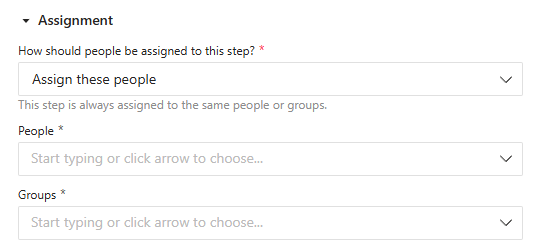
Other ways to configure fixed assignments:
-
Assign using conditions:
In the Review Activity, go to Assignment rules. Choose Assign people based on specific conditions, then add an Assignment formula.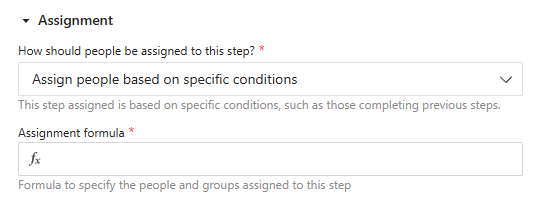
Assignment formula - Example 1:
{
   'person:Adele Vance',
   'person:Lee Gu'
}
This assigns both Adele Vance and Lee Gu.
Assignment formula - Example 2:
{
   'group:HR Administration'
}
This assigns everyone in the HR Administration group.
Contextual
Contextual assignment means a step is assigned to the person who either started the approval process or completed a previous step.
Steps to set it up:
-
Set assignment conditions:
In the Review Activity, open Assignment rules. Select Assign people based on specific conditions, then add an Assignment formula.Assignment formula:
{
   @prop.StartedBy.Person
}
This assigns the person who started the approval.
Group-based
Group-based assignment means a step is assigned to one or more Groups instead of individual people. This separates people from the assignment. By adding or removing people from Groups, assignments can be updated easily - for example, when someone is on holiday.
Steps to set it up:
-
Assign specific groups:
In the Review Activity, open Assignment rules. Choose Assign these people, then select the Groups you want.
Other ways to set up Group-based assignments:
-
Assign using conditions:
In the Review Activity, open Assignment rules. Choose Assign people based on specific conditions, then add an Assignment formula.Assignment formula:
{
   'group:HR Administration'
}
This assigns the step to everyone in the HR Administration group.
To update Group membership, go to Manage > People & Groups.
Conditional
Conditional assignment means people are assigned based on certain factors, such as a value, the time of day, or the day of the week. You can even combine this with other assignment patterns - for example, switching between fixed or contextual assignments depending on a condition.
Steps to set it up:
-
Assign using conditions:
In the Review Activity, open the Assignment rules. Select Assign people based on specific conditions, then add an Assignment formula.Assignment formula:
IF
(
  WEEKDAY(TODAY()) = 2,
  { 'group:Finance' },
  { @prop.StartedBy.Person }
)
On Mondays, the step is assigned to the Finance Group. On other days, it is assigned to the person who started the approval.
 ON THIS PAGE